This procedure assumes that two or more encrypted Comtrend G.hn powerline Ethernet units are already working on G.hn profile “PLC 50MHz with MIMO”, and another unit is being added.
This can be done on any operating system with an Ethernet adapter and web browser.
Set the PC Ethernet adapter (temporarily) to a static IP of 192.168.0.6, subnet 255.255.255.0. A gateway or DNS is not required.
Browse to the factory default IP address in a web browser: 192.168.0.5. The default password is admin.
Keep this browser window open, and open a second window.
Unplug the new G.hn unit, and connect the laptop to the primary G.hn unit via Ethernet.
Browse to the primary G.hn IP address (perhaps 192.168.0.5) and click Pair. This makes the primary ready to accept new units.
Plug in via Ethernet to the new G.hn and click Pair. It will promptly require a login again, click Pair and refresh. The same random “domain name”, “pairing password” and “Domain ID DOD” as the primary should be visible.
Plug the primary Ethernet back into the network as it was before. The middle green light should go back on.
On the new unit, the top and bottom green lights should be steady green, with the middle light flickering with Ethernet activity.
Return the PC Ethernet to its previous configuration (probably DHCP). Browsing the web over the new G.hn connection should be possible after resetting the Ethernet adapter (or unplugging/plugging).
Troubleshooting:
Ensure the primary unit (the one connected to the actual hardwired Ethernet Internet connection) has node type DOMAIN_MASTER.
Ensure all other G.hn units have node type END_POINT.
Avoid using power strips or surge suppressors on the power outlets. The units will only work when plugged directly into a wall outlet (GFCI is OK).
Only use G.hn profile “PLC 50MHz with MIMO” as this provides maximum range with multiple breaker panels in large houses, since it uses all three powerline wires.
NDIM mode should be automatic; after pairing, it will be on the same Domain ID DOD.
Use G.hn encryption to prevent unauthorized access to the network from an outlet on the outside (or inside) of the house.
Consider setting each device to a unique IPv4 manual address. This allows access to other G.hn adapter configuration pages via a web browser when directly connected to one of them.
The manually set IPv4 should NOT be on the same subnet as the network. For some reason, it just won’t work.
Upgrading firmware:
At the time of writing, a Windows 7 PC is required as newer Windows versions are not supported yet.
Errors will occur if not using Windows 7.
A virtual machine of Windows 7 did not work; it had to be a bare metal Windows 7 installation.
Java installation is also required.
It may be necessary to try once or twice, and try resetting power to the PG-9172.
Resetting to factory defaults may also help.
Upgrading firmware should work after 1-2 tries.
This cannot be done remotely; direct connection to the Ethernet jack of the PG-9172 from the Windows 7 PC is required to upgrade Comtrend PG-9172 firmware.
Consider disabling Intel RapidStart to avoid problems resuming from sleep.
RapidStart enables a deeper S4 sleep state, transitioning from an initial S3 state.
However, this transition can be buggy.
If the PC is not always able to resume from sleep/suspend, try disabling RapidStart.
Consider disabling hibernation if resuming from hibernation is not needed.
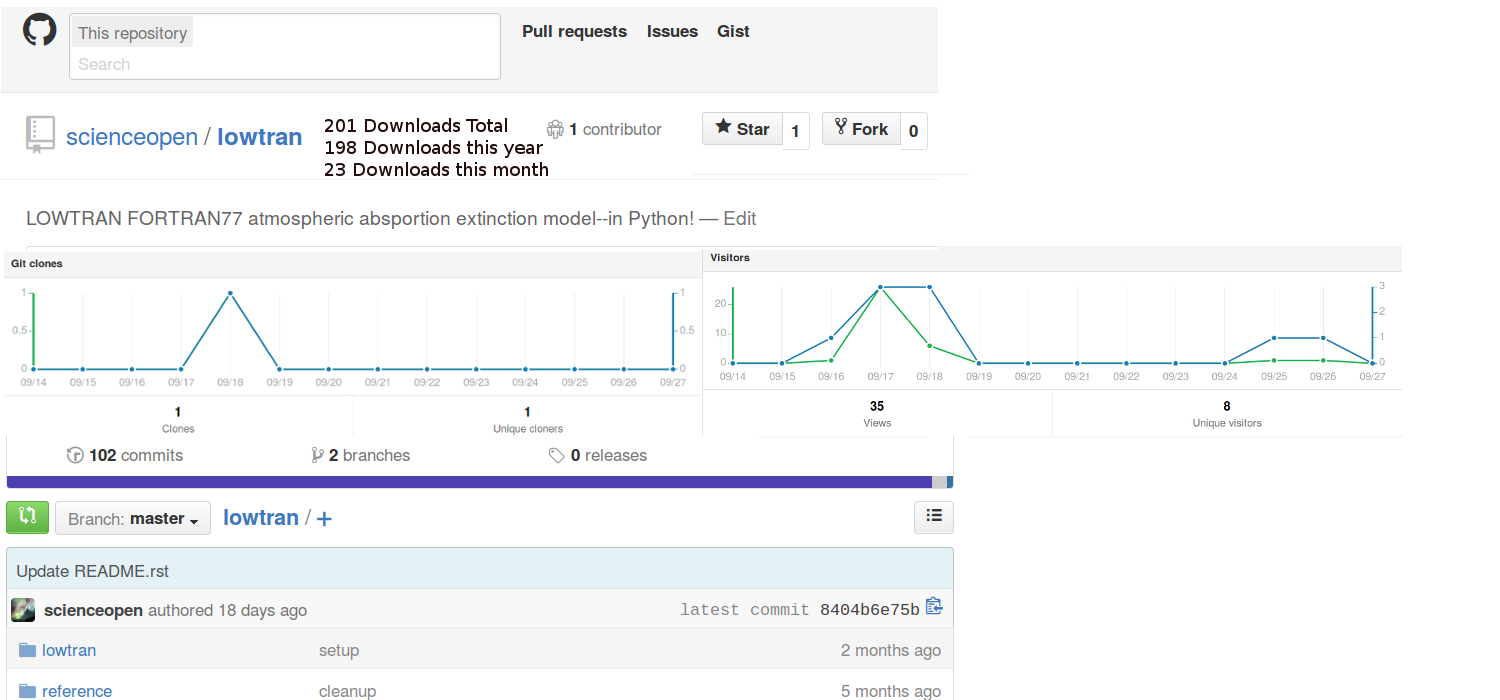
Update Sept 2016 Github has changed their user front pages, moving a little toward this direction.
As submitted to Github:
I advocate to scientist/engineering colleagues and at the legislative level to encourage collaborative open-source development on everything from smart transportation and robotics to climate change modeling and data analysis.
The effort to sunshine code out of dusty forgotten hard drives and into the light would be significantly enhanced if Github would by default or prominently, easily selectable option show repo traffic (views, clones, download zip).
The civic and scientific value of this change could be surprising, and is seemingly something a couple talented interns could prototype in a few weeks.
Github, please help us make a better world of open code by incentivizing authors via easy intuitive plots of repo traffic.
Obtaining a PC that is suitable for high speed camera/SDR work typically entails building a PC from parts for $1K, or getting an appropriate off the shelf Dell Precision for $2.5K.
A desktop CPU is needed with a moderate amount of CPU cache memory and a motherboard with sufficient PCIe slots for the data acquisition cards used.
Some equipment such as software defined radio (SDR) requires dual 10-Gig Ethernet via a PCIe card, and some cameras require a CameraLink PCIe card.
Other devices with onboard FPGAs sometimes require USB 3.0 or Thunderbolt connections.
Don’t use USB 3.0 hubs between PC and the device!
For high frame rate camera acquisition, here are a few CPU series that are known to work well via lab experiment.
The “extreme” edition or Xeon CPUs are not necessary (unless the manufacturer specifies).
Note all these CPUs have at least 8MB of L3 cache (on the CPU die) and are vPro capable.
Please only use desktop quad core i7 CPUs with model number NOT ending in “U”.
Please consider avoiding:
“ultrabook” Intel CPUs that have a model number ending in “U”, such as the Intel NUCs presently use.
laptop computers or tablet computers.
CPUs with model ending in “K” as currently, overclockable CPUs don’t have Intel vPro remote management
Get a motherboard supporting vPro with no less than four USB 3.0 ports.
It’s not wise to cascade USB 3.0 hubs.
Four USB 3.0 seven-port hubs allow up to 28 USB 3.0 HDD, to get hundreds of TB of external storage.
That’s enough storage for 3 months of 12 hour recording per day, or far longer (years) if filtering out unneeded data off-line.
This example assumes use of Andor Solis (paid software), which provides the drivers for the Neo.
Free open-source
MicroManager
can be used with the Andor sCMOS cameras after installing Andor’s free driver pack for MicroManager.
If the Neo drivers or Neon Bitflow CameraLink drivers are missing, Windows Device Manager will look like:
Windows Device manager without driver for Andor Neo
“PCI Device” is the Neon Bitflow card.
“PCI Data Acquisition and Signal Processing Controller” is the National
Instrument X-series card.
“SM Bus controller” is just the motherboard and is a common sight in
some PCs.
While installing the drivers via Solis or the Driver Pack, approve driver installs then reboot the PC when they’re done.
Windows Device Manager after rebooting will look like:
Windows Device manager with driver working for Andor Neo
First powerup and use of Andor Neo/Zyla:
Power on the Neo
startup Solis
Observe the camera serial number in the title bar.
Turn on the Neo before starting Solis/MicroManager!
If problem, close Solis / MicroManager, power on the sCMOS camera, and then reopen Solis/MicroManager.
KPG-49D may not work from WINE.
If not, boot into Windows or use a Windows virtual machine for programming Version 2 Kenwood 900MHz radio.
Note: A yellow exclamation point over the USB to serial adapter in Device Manager may indicate an obsolete version of the Prolific 2303.
You can either replace the cable or use older Windows version.
This procedure is for VERSION 2 radios only!
Version 1 uses the DOS software KPG-35D.
To connect to the Beaglebone Black via SSH, use a USB to FTDI converter to J1.
Be sure not to connect the Vdd, 5V, 3.3V or any pin providing voltage to J1!
Beaglebone Black J1 pinout:
pin
purpose
1
ground
4
RX data (connect to TX data of FTDI adapter)
5
TX data (connect to RX data of FTDI adapter)
There is no standard pinout for the USB to FTDI adapters, but the pins are normally labeled on the USB to FTDI adapter board.
connect the USB to FTDI adapter to the Beaglebone Black (you might use a USB extension cable–I’ve had good luck over the years with the Keyspan USA-19HS)
open up PuTTY and set the baud rate to 115200 8-N-1 and the COM port to match Device Manager in Windows or terminal.
Hit Enter a couple times on your laptop and you should see the login prompt.
The danger of cheap non-temperature regulated soldering irons is that the cheap soldering irons go from too hot when starting to solder the joint to too cold from cheap tip materials with poor thermal conductivity.
This leads to joints that have cavities and are improperly flowed, especially a problem for radio frequency or high speed digital circuits.
Cheap soldering irons lead the newbie or even the experienced user to burn parts, lift PCB traces off the board and get so hot they are very uncomfortable to hold.
Often the cheap irons are not grounded, so you could be zapping the circuit you’re trying to fix.
For the beginner, there are $40 soldering stations available from reputable online sources–checkout the reviews or YouTube to get a better sense.
For me as a life-long electronics guy, I went straight to Weller (Hakko is good, too).
I strongly recommend the Weller WES51 temperature controlled soldering iron for those who outgrow the use of the local maker-space or borrowing a friend’s iron.
I emphasize the temperature controlled part because even the Weller WLC100 does not have closed-loop temperature control.
Many things we solder these days are of small size and delicate, so you don’t want to just guess at the temperature you’re using.
The Weller WES51 is rated at maintaining the tip +/- 6 degrees Celsius from the setting.
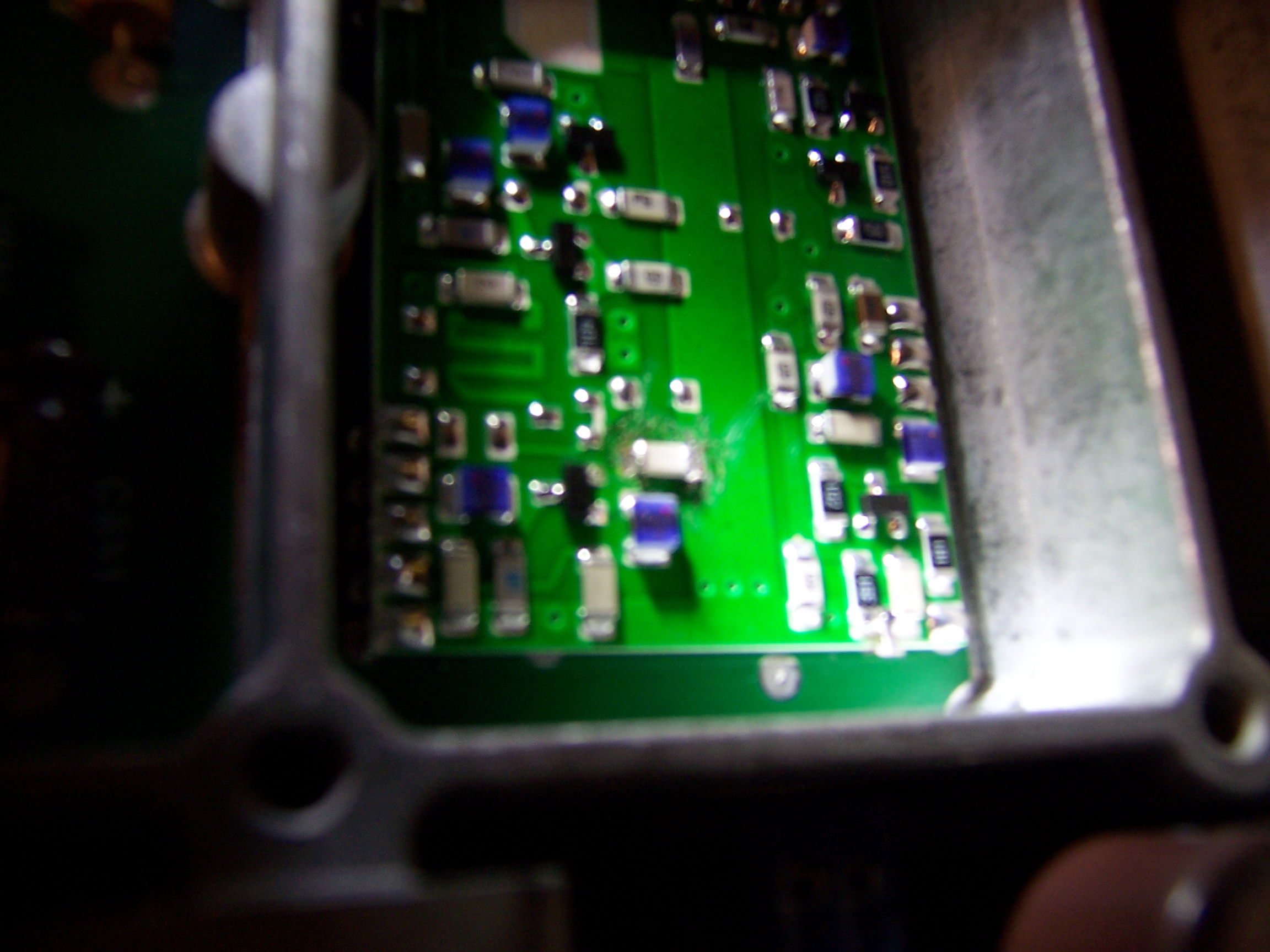
The WES51 has an analog temperature dial, which is close enough even with surface mount components, as you see in the photo below.
It’s hard to see due to the focus, but the new white cap at the center of the picture soldered in like a dream, using the optional 1/32" tip.
EFJ 900MHz VCO
For about 50% more cost you get the digital temperature readout Weller WESD51.
We prefer the analog WES51 because one can change the temperature setting more quickly on the WES51 (just spin a dial vs. push and hold button on the WESD51), and it’s not necessary to have a perfect temperature setting or to lock the setting (perhaps something a factory assembly line would do).
Jeff Cogswell’s article
Learning Enough Python to Land a Job.
calls out that Python is for more than web development, Django, Twisted, Flask, &c.
As a data science practitioner, mangling tens of gigabytes if not tens of terabytes daily from sensors deployed around the globe, converting code to Python after several years of hard-core Matlab use was motivated by Python’s highly-performant data science stack incorporating Pandas, SciPy, Numpy, h5py and other specialty Python user modules.
Port code gradually, even from very high-level languages like Matlab. Tools like f2py for Fortran 77/90+, SWIG (and numerous others) for C, Oct2Py for Matlab, etc. allow you to speedily and often straightforwardly integrate code from other popular languages.
Get familiar with (in this order): Spyder, Numpy, Matplotlib, h5py, Scipy, and Pandas. If you’re working with most real problems, you should be considering Pandas and h5py to allow you to filter/select data before reading it all form disk. I personally prefer h5py over PyTables. The fastest data to load is data where the superfluous data you didn’t need was never loaded, that would otherwise slow down the loading of the wanted data!
Get started in data analysis knowing not much more than how to use dict(), list(), and numpy.array() along with the standard basic functions that one would use in Matlab or R. such as sqrt(), for, if, &c. Learn about Numpy and Pandas before dealing with generators, sets, list comprehensions, itertools, etc.
When you find you have lots of heterogeneous but associated variables, particularly those associated by time, it’s time to use Pandas. Beyond 2-D DataFrames, xarray is the module to use. Pandas is awesome for loading and working with large heterogenous datasets. Think of Pandas as SQL for doing computations.
We hope this commentary on Python for data scientists and analysts considering the transition to Python from languages such as R, Matlab, Fortran, etc. has helped you.