Since the August 2017 eclipse, Pavel Demin has made numerous improvements to the FPGA firmware and associated C code.
The particularly interesting changes are those enabling easy GPS 1PPS input.
Does the clock synchronize to 1PPS or instead tag the data at the pulse?
Radar firmware/software: start with Pavel’s
radar project.
compile & create an SD card image like the LED blinker example
Pavel’s
commit
adds the trigger logic to the radar projects.
However, we experienced problems with
radar.c
The server outputs Bus error when it reaches these lines.
It stems from the sts (status) AXI, communication pathway.
Pavel said:
The error that you observe is expected.
The radar.c code should be modified to adapt it to the radar FPGA configuration.
In its current state, radar.c is mostly a copy of a code from an SDR project that I never tested with the radar FPGA configuration.
This quick benchmark verifies a remote USB HDD is performing as USB 3.
A malfunctioning drive may show as USB 3 in
USBview,
yet write at USB 2 speeds.
This technique works on Unix-like OS.
Typical USB HDD write speed:
USB 2 hard limit: 60 MB/s by the 480 Mb/s raw USB 2 speed.
real-world USB 2 HDD speed: 30-40 MB/s sequential write
In contrast, USB 3 HDD are limited by the magnetic hard drive speed with today’s hard drives, provided your chipset drivers aren’t messed up.
If Windows fails to load the USB 3 drivers for an HDD the drive operates at USB 2 speeds, which is easily detected with this test.
Because of numerous caches from the CPU to the drive itself, using a simple method like this will not give precise results.
Write speed for big files is a test of sequential write speed.
Sequential write speed is important for many remote sensing problems, which are by definition often a time series of data.
Linux has several tools to get computer information from Terminal, including over SSH.
USB device lists
are available to detect newly plugged or existing devices.
General computer info is obtained by:
dmidecode
dmidecode gives useful computer information from the Linux terminal, including over SSH.
dmidecode can help in remote asset tracking and verification of Linux computers.
-t
selects type of dmidecode info. See man dmidecode for more categories 0-255.
Motherboard model # and serial #: dmidecode -t 2
BIOS version: dmidecode -t 0
CPU capabilities: dmidecode -t 4
CPU cache memory: dmidecode -t 7
RAM capability (maximum RAM): dmidecode -t 16
RAM installed: dmidecode -t 17
To determine CPU speed on Linux use powertop and tab over to frequency stats to see percent of time overall CPU and each core is in a particular speed and state.
Getting point measurements isn’t as useful to me as modern CPUs are constantly switching state.
For BSD, get reports of CPU temperature and current speed with
systemctl dev.cpu
Storage info is revealed by
lsblk
lsblk gives a tree view of connected storage, including: hard drives, SD cards, DVD/CD, USB drives, etc.
This includes drives that are not mounted.
Use lsblk when
writing an SD card to setup a Raspberry Pi
for example.
On BSD,
camcontrol devlist
gives hard drive device names like lsblk on Linux.
/dev/ada0 is a common BSD HDD name.
To control HDD spindown time,
ataidle -I 30 /dev/ada0
-I 30 sets spindown time (after HDD unused this many minutes, spindown, here 30 minutes)
Shows basic status for WiFi:
iwconfig

iw dev wlan0 station dump
gives more advanced information.
wlan0 is the Wifi card interface name
Typically, wireless cards including WiFi are on the PCI bus.
Unless of course you have a USB WiFi adapter.
The wireless/WiFi chipsets can typically be identified by
This may be more intuitive than using udev rules, which is another alternative method.
Alternative GRUB:
This method is simpler, but does not work on non-GRUB hardware (e.g. ARM systems like Raspberry Pi).
Edit /etc/default/grub:
GRUB_CMDLINE_LINUX="net.ifnames=0 biosdevname=0"
In Terminal,
update-grub
Reboot and type
ip a
to confirm network adapter is at eth0
When is eth0 name needed?
Some old software (e.g. old Matlab versions) will only accept eth0 for licensing using the MAC address (low security!)
Also sometimes for convenience in embedded/IoT systems where you know you’ll only have one Ethernet interface, you’d like to simply use eth0.
FMeXtra can use 20% or 30% of the FM modulation, making up to 110% or 82.5 kHz deviation.
Main channel
SCA modulation
mono
30 %
stereo
20 %
From Radio World reporting, the one-time cost of FMeXtra was ~ $10K, with no periodic licensing fees.
The FMeXtra receivers were to be of comparable cost to HD Radio receivers; in fact the proposed FMeXtra receivers could also decode HD Radio, DRM, DAB, etc.
That seems like a great deal, and the Radio World testing showed that for 20% modulation depth, FMeXtra coverage was roughly comparable to -20 dBc HD Radio.
So why did FMeXtra/VuCast fail to be adopted?
In effect we’re discussing energy/bit, which translates into energy/revenue for broadcasters.
The most typical mode FMeXtra would be used in would be the mode preserving FM analog stereo and RDS, while precluding analog SCA.
Thus, 62.5-98.5 kHz baseband in the lu;rds mode yielding 48 kbps, which could be split into 4 audio streams of low mono fidelity or 2 streams of medium fidelity or 1 stream of good fidelity (not quite high fidelity).
In comparison, HD Radio offers 96-120 kbps in hybrid and extended hybrid modes respectively.
WCSP in Washington, D.C. with 4 digital subchannels has good audio quality.
Music stations with 2 digital subchannels generally have good music audio quality, particularly as compared to the high artifacts of the old codecs used by Sirius XM SDARS satellite radio.
To make a digital transition worthwhile for the broadcaster and the listeners, there must be additional digital audio streams of at least FM stereo quality.
That is, the sales staff must be able to sell advertisers on additional audio streams.
Generally listeners are OK with analog FM on modern receivers that employ DSP stereo blending and diversity receive antennas, but prefer the clarity of 48-64 kbps AAC audio.
HD Radio is an improvement in audio quality over analog FM, particularly in multipath prone urban environments, but what drives listeners to buy a new digital FM radio is extra subchannels.
RF bandwidth for FMeXtra vs. HD Radio: FMeXtra adds one additional music channel at 48 kbps.
For talk subchannels, at least 16-24 kbps is preferred.
HD Radio gives a high quality digital copy of the analog channel and adds a second high quality digital channel, or gives two additional digital-only music channels.
HD Radio transmitter basic install is ~ $50K.
So for about 4 times the capital cost for HD Radio over FMeXtra, the broadcaster gets 2.5 times the digital bitrate.
The appeal of RDS is the ability to build station affinity by showing callsign, current song playing, station phone #, etc. at least than $400 broadcaster hardware cost, while nearly every modern automotive receiver will display RDS as well as cell phones, the main means of FM listening.
To invest $10K in FMeXtra, with no current receiver availability, is a non-starter, perpetuating the chicken and egg program of FMeXtra.
Back to the energy/bit argument, with HD Radio’s extended hybrid 120 kbps available for audio, the sales staff has 4 medium fidelity subchannels + 1 analog subchannel.
Or, 1 analog + 2 high fidelity subchannels.
What happens in urban areas is that a station will sell 1 or 2 medium fidelity subchannels to foreign language programming or talk radio that would normally be on an AM station + one medium-high fidelity copy of their analog channel.
Or, one high fidelity copy of analog channel + one high fidelity second music channel.
FMeXtra in the same scenario adds two foreign language or talk radio or one music without helping the existing analog.
FMeXtra has in effect one less music subchannel to sell vs. HD Radio–and that lost relative revenue keeps accumulating.
Stations also get the benefit of more reliable modern equipment when upgrading, more amenable to remote operations and maintenance.
The affluent customers reached first by HD Radio could demand higher CPM (advertising rates).
Successful ROI has been achieved by FM HD Radio stations able to:
lease HD subchannels to serve particular markets (instead of/in addition to AM broadcast)
HD-on-translator, where a large subset of main coverage is narrowcasted to college, minority, etc.
onboard advertisers of modest means on subchannel, revenue not reachable at main channel cost structure
These techniques implicitly on having lots of receivers in the field.
With over a third of new automobiles having HD Radio–primarily affluent and high tech models, audiences appealing to advertisers, FMeXtra is nudged out by having no available receivers.
1/2 the digital subchannels for 1/4 one-time capital is offset in the ROI game.
When it comes to full digital HD Radio, FMeXtra is left in the dust as it’s currently a hybrid-only system.
As with HDTV, broadcasters will be able to cut their transmitter power (and electricity bills) significantly, while offering better coverage, quality and more channels.
If FMeXtra were free to the broadcaster, they still may choose HD Radio for the ability to have twice as many subchannels and the entrenched market of receivers.
DAB has tried and failed in North America (Canada) due to the dispersed population.
Microsoft
USBView
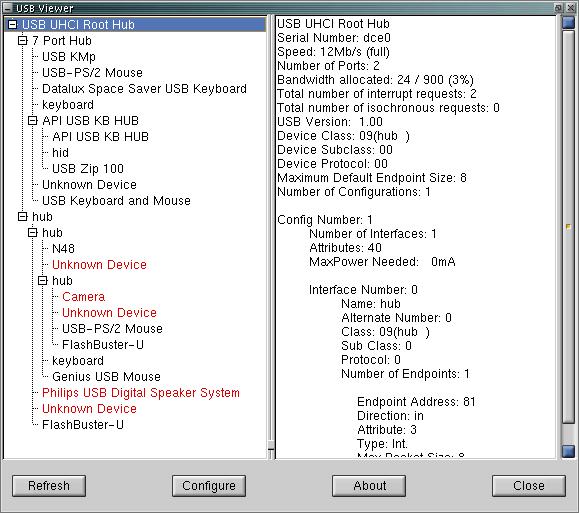
allows viewing connected USB devices on Windows in a tree view.
This allows viewing which ports devices are plugged in to.
USBView shows the name of chipsets and devices, even their serial numbers.
An example use is computers in remote locations: verify that equipment is plugged in via USBView.
USBview
Linux USB View is available on
GitHub.
Follow the “INSTALL” file directions.
Note: This test should only be used with a new throwaway Gmail account as it risks security of the Gmail account in use.
Instead consider
Oauth with Gmail.
This is a complete example of SMTP sending email via Gmail from Python.
To use with two-factor authentication account requires a
Gmail App Password.
You need to use Oauth instead of this method for real-world systems, this is just a simple didactic example.
"""
send text string (e.g. status) via Gmail SMTP
"""importsmtplibfromemail.mime.textimport MIMEText
fromgetpassimport getpass
defsender(user:str, passw:str, to:list, textmsg:str, server:str):
"""
this is not a good way to do things.
Should use Oauth.
"""with smtplib.SMTP_SSL('smtp.gmail.com') as s:
s.login(user, passw)
msg = MIMEText(textmsg)
msg['Subject']= 'System status update' msg['From']= user
msg['To'] = ', '.join(to)
s.sendmail(user,to, msg.as_string())
s.quit()
if__name__ == '__main__':
fromargparseimport ArgumentParser
p = ArgumentParser()
p.add_argument('user',help='Gmail username')
p.add_argument('to',help='email address(es) to send to', nargs='+')
p.add_argument('-s','--server',help='SMTP server',default='smtp.gmail.com')
p = p.parse_args()
testmsg="just testing email from Python setup" sender(p.user+'@gmail.com',
getpass('gmail password: '),
p.to,
testmsg,
p.server)
Both the shell and Python methods get public IPv4 and IPv6 addresses.
This is good for verifying the computer IP is in the organization’s IP address range.
These scripts use the “reflector” method, which can be more reliable on complex networks.
Shell: specify the network interface with curl --interface eth0 option.
url=('https://ident.me''https://api.ipify.org')
for u in ${url[@]}; do curl -6 -s -m 2$u && breakdonefor u in ${url[@]}; do curl -4 -s -m 2$u && breakdone
#!/usr/bin/env python"""
gets interface IPv4 and IPv6 public addresses using libCURL
This uses the "reflector" method, which seems more reliable for finding public-facing IP addresses,
WITH THE CAVEAT that man-in-the-middle, etc. attacks can defeat the reflector method.
"""fromipaddressimport ip_address
importpycurlfromioimport BytesIO
urls = ['https://ident.me', # ipv6 and ipv4'https://api.ipify.org'] # ipv4 onlylength=45# https://stackoverflow.com/questions/166132/maximum-length-of-the-textual-representation-of-an-ipv6-addressdefgetip(interface=None):
for url in urls:
addr = []
for ipv in (pycurl.IPRESOLVE_V4,pycurl.IPRESOLVE_V6):
buffer = BytesIO() # must clear like this C = pycurl.Curl()
if interface:
C.setopt(pycurl.INTERFACE,interface)
C.setopt(C.URL, url)
C.setopt(pycurl.IPRESOLVE, ipv)
C.setopt(C.WRITEDATA, buffer)
try:
C.perform()
result = buffer.getvalue()
try: #validate response addr.append(ip_address(result.decode('utf8')))
exceptValueError:
passexcept pycurl.error:
passfinally:
C.close()
iflen(addr)>1: #IPv4 and IPv6 foundbreakreturn addr
if__name__ == '__main__':
importsignal signal.signal(signal.SIGINT, signal.SIG_DFL)
fromargparseimport ArgumentParser
p = ArgumentParser()
p.add_argument('-i','--iface',help='network interface to use')
p = p.parse_args()
addr = getip(p.iface)
print(addr)